
Before you start
To set up your project for BREEAM V7, you’ll need to ensure that you’ve completed our Beginner & Intermediate online LCA and software training courses. Our online training courses are free for all accounts registered on eTool regardless of subscription level. Once you’re logged into eTool, just click on the ‘(?) Help’ button in the top right corner of the page to access our Support Site and be automatically enrolled into the training courses. 
Why do I need to complete the training?
Completing our online training courses unlocks access to our Certification service in eTool which meets BREEAM’s definition of ‘suitably qualified third-party verifier‘. Depending on your subscription level, this certification service may already be included. Consideration for the time needed to complete our training courses and the certification process need to be accounted for in order to complete your project in a timely manner for BREEAM submission.

Step-by-Step Set Up Guide
With the completed training under your belt, please follow the steps below to set up your project for BREEAM V7 (only applicable for UK projects):
1. Create a new Project
Click on ‘+ New Project’ in your home dash to create a new project.
You’ll see a pop-up window that will take you through 6 sections with various details to be specified at each section.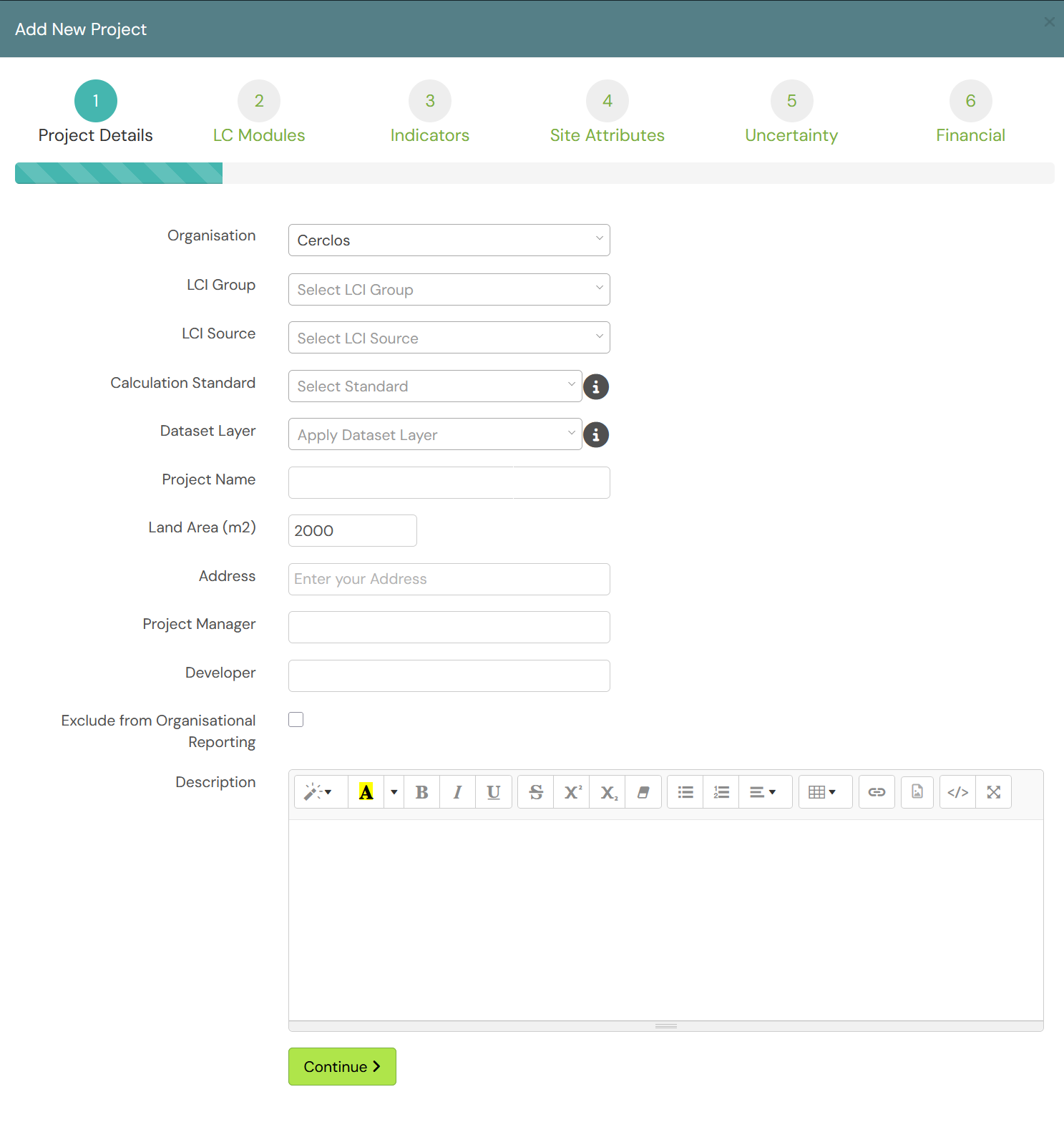
2. Project Details Set up
Organisation
If available, under Organisation – select the name of the organisation as applicable. If you hold seats in multiple organisations, this should be the organisation that owns the IP to this model.
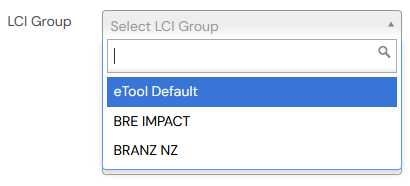
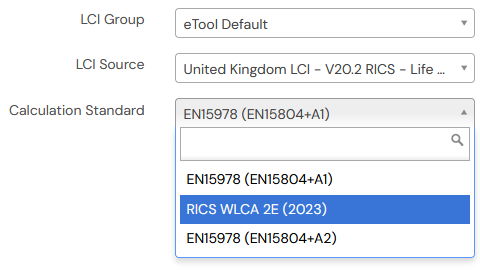
LCI Group
Select ‘eTool Default’ under LCI Group.
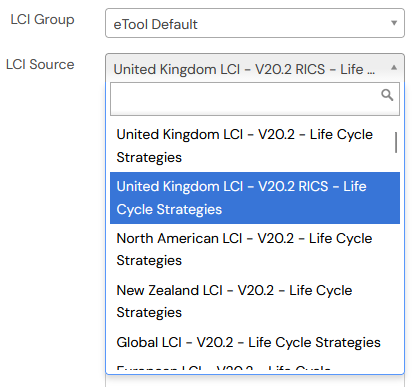
LCI Source
Select ‘United Kingdom LCI – V20.2 RICS’ under LCI Source
Calculation Standard
Select ‘RICS WLCA 2E (2023)’ under Calculation Standard
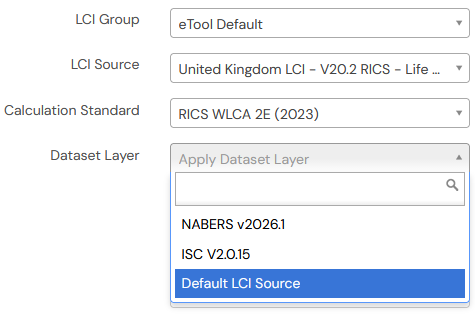
Dataset Layer
Select ‘Default LCI Source’ under Dataset Layer
Complete remaining fields
Fill out the rest of the fields as relevant for your project then hit ‘Continue’
3. LC Modules
All Life Cycle Modules are typically set to ‘on’ by default. BREEAM V7 is based on whole of life assessment therefore you can leave this at the default setting.
4. Indicators
By default, the mandatory Impact Indicators required for RICS will be set to ‘on’. However if you’re targeting the Man 02 LCC credit, you will need to additionally turn on the British Pounds Sterling financial indicator.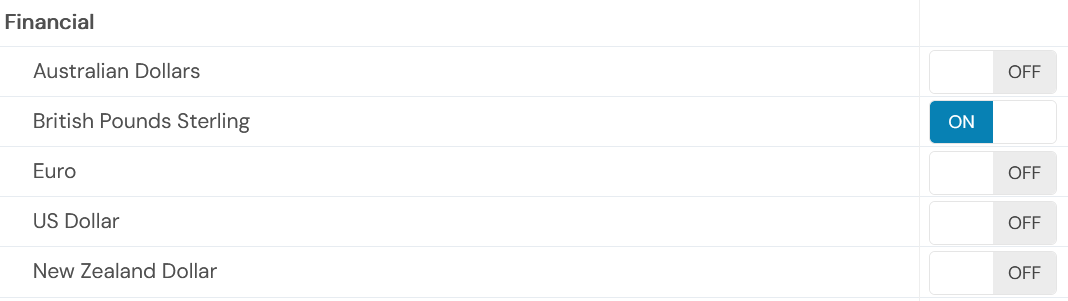
5. Site Attributes
Under Site Attributes, select the latest RICS UK grids and click continue. You may leave the other inputs in this section as is.

6. Uncertainty & Financial
Select the applicable Uncertainty and Financial specifications as applicable for your project in the last steps to finish the Project creation step. For more information on the RICS uncertainty factors, please refer to this Uncertainty Analysis knowledge-base post.
7. Add a new Structure to your project
In your new project, click on the ‘+ New Structure’ button to add a new structure.

Construction Scope
In the pop-up window, fill out the Structure Info section as applicable for your project then click ‘Next’. Under the Construction Scope section, select the ‘RICS WLCA 2E (2023)’ categorisation standard. You may leave the Construction and Energy & Water scope in default which usually covers most projects, or you may update it according to your project scope.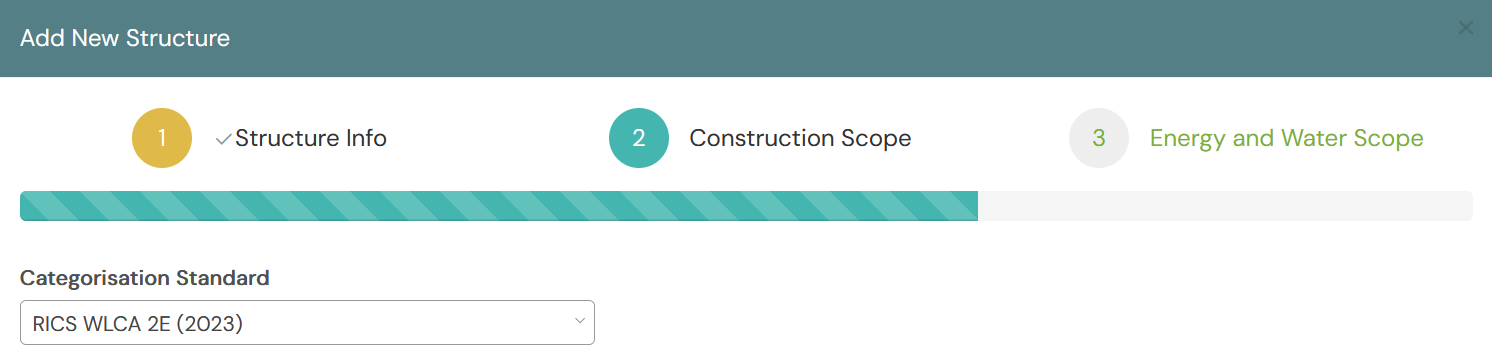
8. Add a new Design
We recommend that you start with modeling your ‘Business As Usual’ design first as your baseline, submit it for Certification, then only proceed with using our Scenarios functionality to model every improvement strategy leading up to your Proposed Design. For more information on this modeling workflow, have a read of our eTool Workflow knowledge-base post.
When you’re ready to start modeling your baseline design, the design details and function set up will be as per the guidance in our online training course. There is no BREEAM specific settings at this level as these inputs are specific to your project.
- Coming soon!
