
This support article walks you through how to source free, machine-readable Environmental Product Declarations (EPDs) from the EcoPlatform network and import them into the eTool EPD library. This allows you to utilize precise, manufacturer-specific data for your custom templates and designs.
Before You Begin
- No Login Required: The EcoPlatform database is completely public. You do not need to create a profile or log in to download data.
- Product Details: Know the exact product name, manufacturer (EPD owner), or EPD program you are looking for.
Step 1: Locate the EPD on EcoPlatform
- Head directly to the official website: eco-platform.org.
- From the main menu, navigate to Our Eco EPD → Eco Portal.
- Scroll down to the search and filter interface.
- Search for your specific product. You can find it by typing in the EPD Product Name, looking up the EPD Owner (the manufacturer), or filtering by the specific EPD Program.

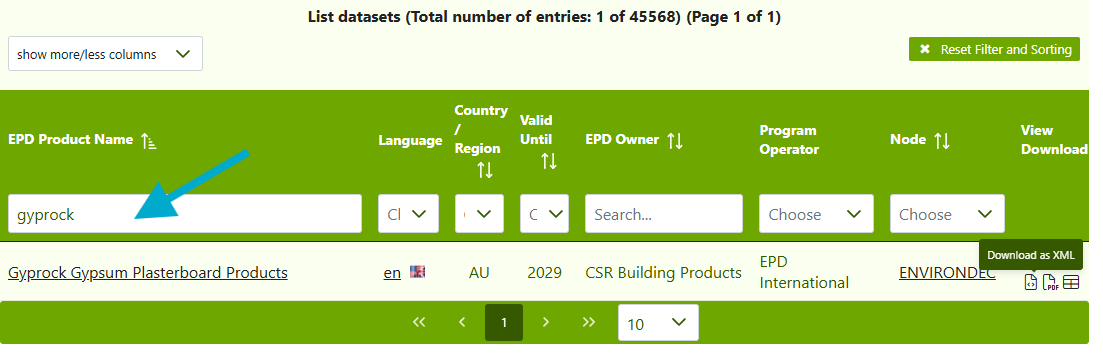
Step 2: Download and Locate the XML File
Once you have found the correct product in the portal, you need to extract the machine-readable file that eTool uses.
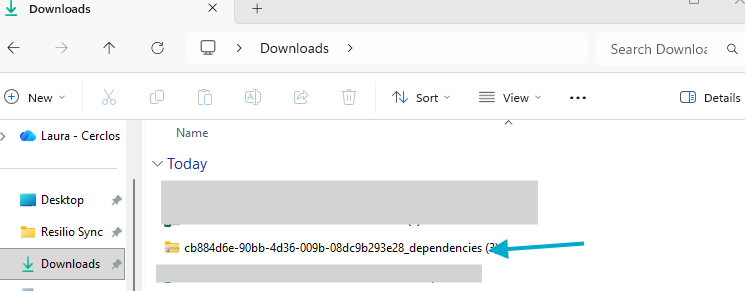
- Click the Download as XML button on the portal to download the data package (this will download as a compressed .zip file).
- Open or extract the downloaded .zip file on your computer.
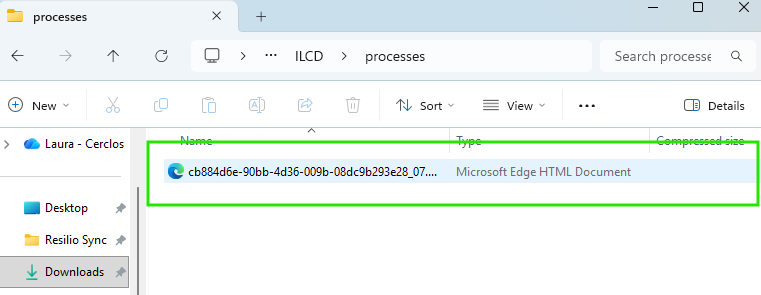
- Open the main ILCD folder inside it.
- Open the process folder.
- The file sitting inside this “process” folder is the actual machine-readable file you need. Keep this window open or copy the file to your desktop for easy access.
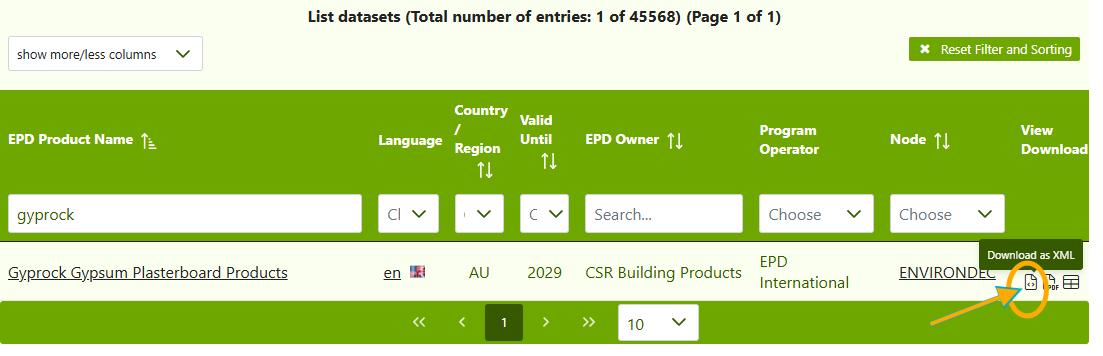


Step 3: Upload into the eTool EPD Library
Now that you have the file, you can bring it straight into eTool:
- Open eTool and navigate to your EPD Library.
- Click the Upload EPD button.
- Simply drag and drop the file you found in the “process” folder directly into the upload zone (or click to browse and select it).
- Click Save.

Your new EPD dataset is now created and saved in your library.
Step 4: Confirm the Upload Succeeded
After eTool finishes processing the file, the software will display a summary screen of the imported data. Take a quick moment to verify that everything came through correctly:
- Expected Indicators: The exact product name should map correctly, the declared unit should match the official EPD document (e.g., 1 m³ or 1 kg), and the life cycle modules should display active data.
- Error Flags: If the fields appear completely blank, the units scale incorrectly, or the indicator sets fail to map, the XML file may be corrupted or formatted to an unsupported schema version. Check the troubleshooting table below if this happens.
Step 5: Check the EPD Before Relying on It
⚠️ CRITICAL STEP: Do Not Skip This Review
Simply uploading a file successfully does not automatically guarantee that your LCA model is accurate. You must apply your professional judgment to ensure this specific data accurately reflects your project’s actual design parameters.
Before you start using the data in your models, run through these five essential checks:
1. Single-Product vs. Multi-Product EPDs (Average Data)
Many industry declarations (such as standard plasterboard or concrete EPDs) cover a whole range of products under a single registration number, using a single representative product to generate the baseline impacts.
- Why this happens: Running separate LCAs for every single product variation (SKU) is cost-prohibitive for manufacturers. Product Category Rules (PCR), EN 15804+A2, and ISO 21930 explicitly permit grouped or average declarations, provided their representativeness is properly documented.
- The Impact on your Model: The raw numbers you just downloaded might represent a heavier or lighter version than the specific product variant used in your building. You must check the official EPD text for published conversion factors (such as scaling factors based on thickness or density) and apply those adjustments within your eTool template. Using the raw data without these factors will misstate your project’s true environmental impacts.
2. Completeness and Module Checks
Review which life cycle modules are included in the dataset. While older standards focused primarily on cradle-to-gate (Modules A1–A3), newer EN 15804+A2 standards mandate the inclusion of end-of-life stages (Modules C1–C4) and benefits beyond the system boundary (Module D). If you are running a comprehensive cradle-to-grave assessment in eTool, using an EPD that omits Modules C and D will artificially understate the whole-of-life impacts of that material. For more details on how fill the gap on missing modules refer to How to Add An EPD Into Your Design article
3. Indicator Set Alignment (EN 15804+A1 vs. +A2)
Check whether the EPD is built to the +A1 standard (7 core environmental indicators) or the +A2 standard (13+ core indicators, including split Global Warming Potential for fossil, biogenic, and land-use pathways).
- Allocation Flags: ND vs. 0
Look closely at how missing data is flagged in the summary.
- ND (Not Declared) means the impact pathway was not assessed or reported by the manufacturer.
- 0 (Zero) means the impact was measured and determined to be zero.
Treat these differently. Treating an “ND” flag as a literal zero mathematically misrepresents the completeness of your assessment.
5. Declared Unit to Functional Unit Match
Confirm that the declared unit from the EPD matches how you are measuring the material in your eTool template. For example, if the EPD states impacts per metric tonne, but your eTool model measures the material in cubic meters.
Troubleshooting Common Issues
|
Issue |
Root Cause |
Resolution |
|
eTool rejects the XML file during upload |
Attempting to upload the entire zipped ILCD folder, or selecting the incorrect configuration XML. |
Make sure you extract the zip file first. Navigate all the way into the /Processes/ subfolder, and select only the product process .xml file inside. |
|
GWP impacts display as zero or blank |
The EPD uses an unsupported indicator schema format, or the allocation flag was set to ND (Not Declared). |
Cross-reference the EPD standard version (+A1 vs +A2) and check the eTool mapping settings to align the indicator fields manually if needed. |
|
The material impacts look impossibly high or low |
The declared unit from the EPD does not match the material unit mapping inside the eTool template. |
Check the unit scaling factor. Ensure you have accounted for density conversions (e.g., converting kg to m³) or applied the correct multi-product SKU conversion factors found in the EPD documentation. |
