
This support post outlines the method for importing your cost data into your eTool design. The method outlined below enables users to specify costs for each template imported into your design. This is a crucial step when conducting a Life Cycle Cost study as it ensures life cycle costs are relevant, accurate, and timely to the study.
The default costs retained in eTool are indicative only and should not be relied upon to conduct an accurate life cycle costing study. Template cost import is the most efficient method to update costs in-line with project cost plans.
Project Set Up
Ensure that the relevant financial indicator for your project has been turned on in the Project Level under the Indicators tab.
Import Template Costs
Project specific cost data can be imported into your Design at the template level through the utilisation of the Import Templates functionality.
The process for assigning a cost to a template is undertaken during the template import. In addition to the mandatory template column identifiers, you have the option to include a cost column in the CSV file uploaded to eTool. When utilised, this cost will be applied to the capital cost of the template it is associated with. If you are unfamiliar with the template import process, please review this support post, which takes you through the process. Below is a step-by-step guide demonstrating how to import templates with an associated cost.
Please note the costs included in the example are indicative only and have been included to demonstrate how the process works.
Step 1 – data processing
- It is important to process your data into a format that is compatible with eTool before you import templates and costs into the software. If you are familiar with importing templates into an eTool design, you should already be used to the step and so processing the cost data should be straightforward.
- The key to this step is understanding what the cost column in your import sheet relates to in eTool. The cost assigned to a template represents the total capital costs for that line item. In eTool, Total Capital Costs are made up of Material, People and Equipment costs. This corresponds to upfront costs, life cycle modules A1-A5.
- With that in mind, when processing the your cost data, you need to determine the total capital cost for the eTool template representing the cost plan line items.
Step 2 – import CSV file
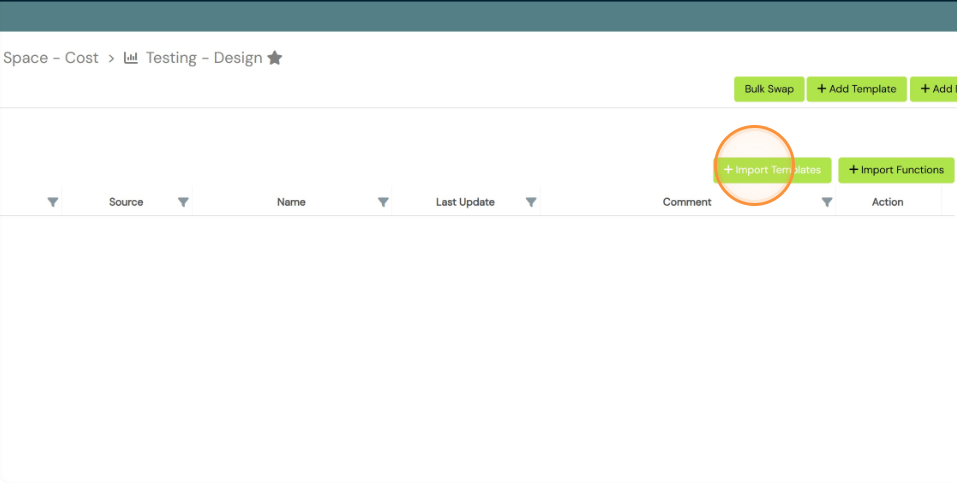
- At the design level, navigate to ‘Import’ tab and select ‘Import Templates’.
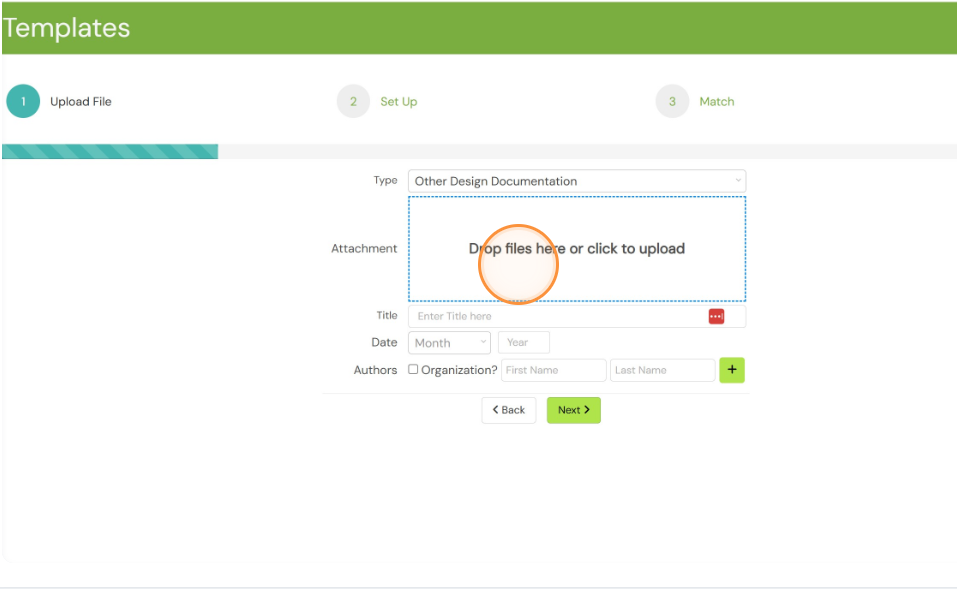
- At step 1 of the template import process, select the CSV file containing the list of templates and the associated costs and populate the required file characteristics.
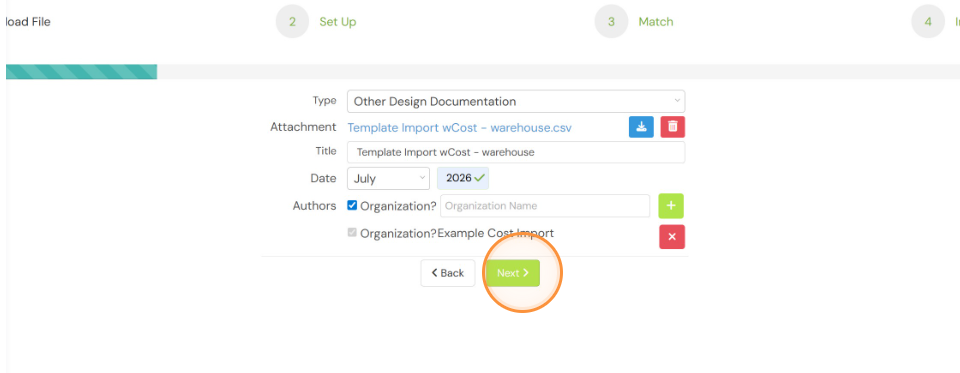
- At step 2 of the template import process, map the imported columns from your CSV file to the relevant eTool Fields.

- Progress through steps 3 and 4 of the template import process as per the standard template import process. Upon completion of the import, your design will contain the full list of templates from the CSV file. At this stage you can review the cost for each template by selecting the relevant financial indicator from the Impact Summary. This will display the design cost data as per the project level characteristics. The screenshot below displays the template cost in GBP for life cycle modules A1-A5 which corresponds to the imported total capital cost.
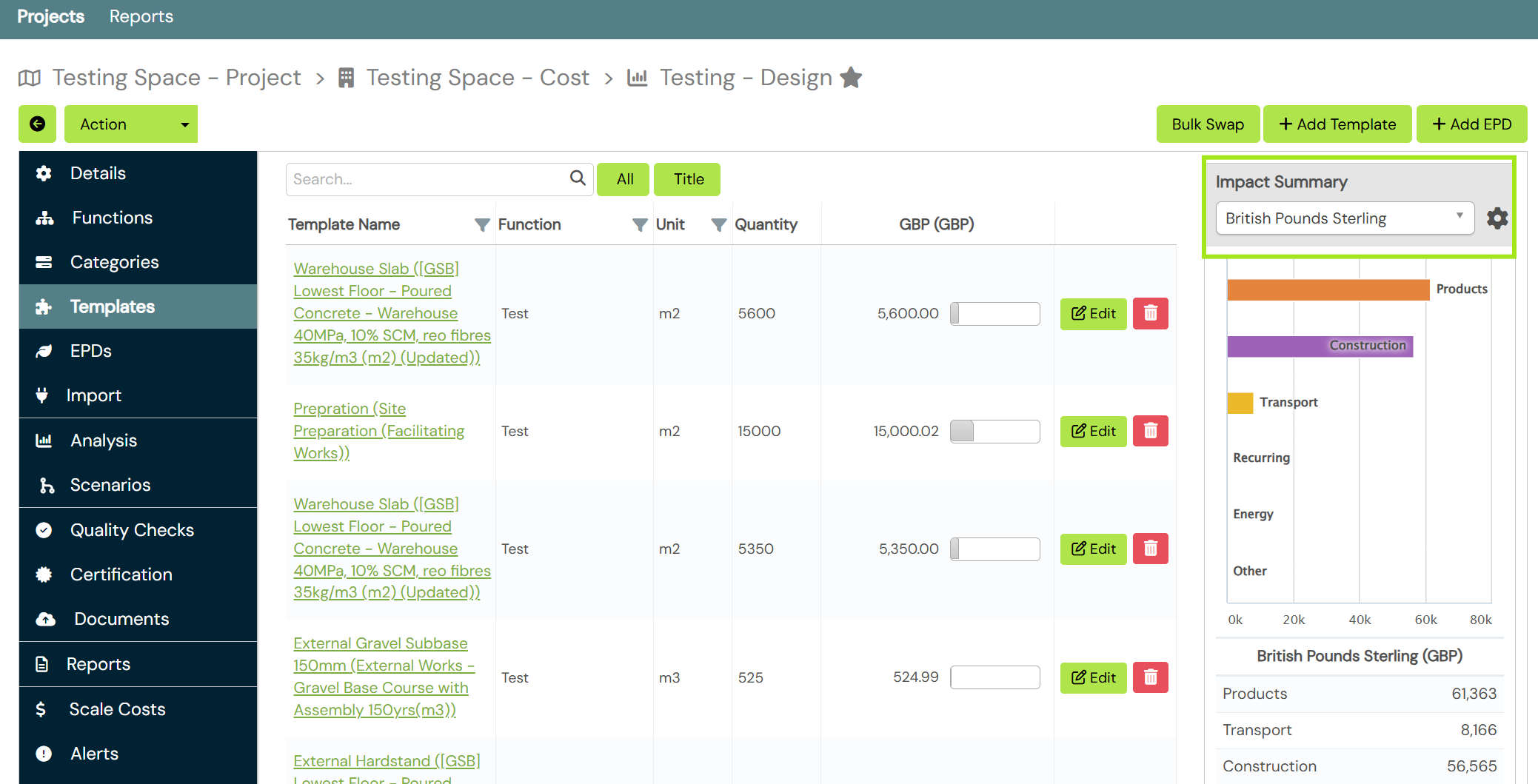
- For each template, the split of Total Capital Cost between Material costs and People and Equipment costs can be viewed and adjusted through the Scale Costs tab within the template. Please refer to the Scale Costs post for more detail on how this function works.
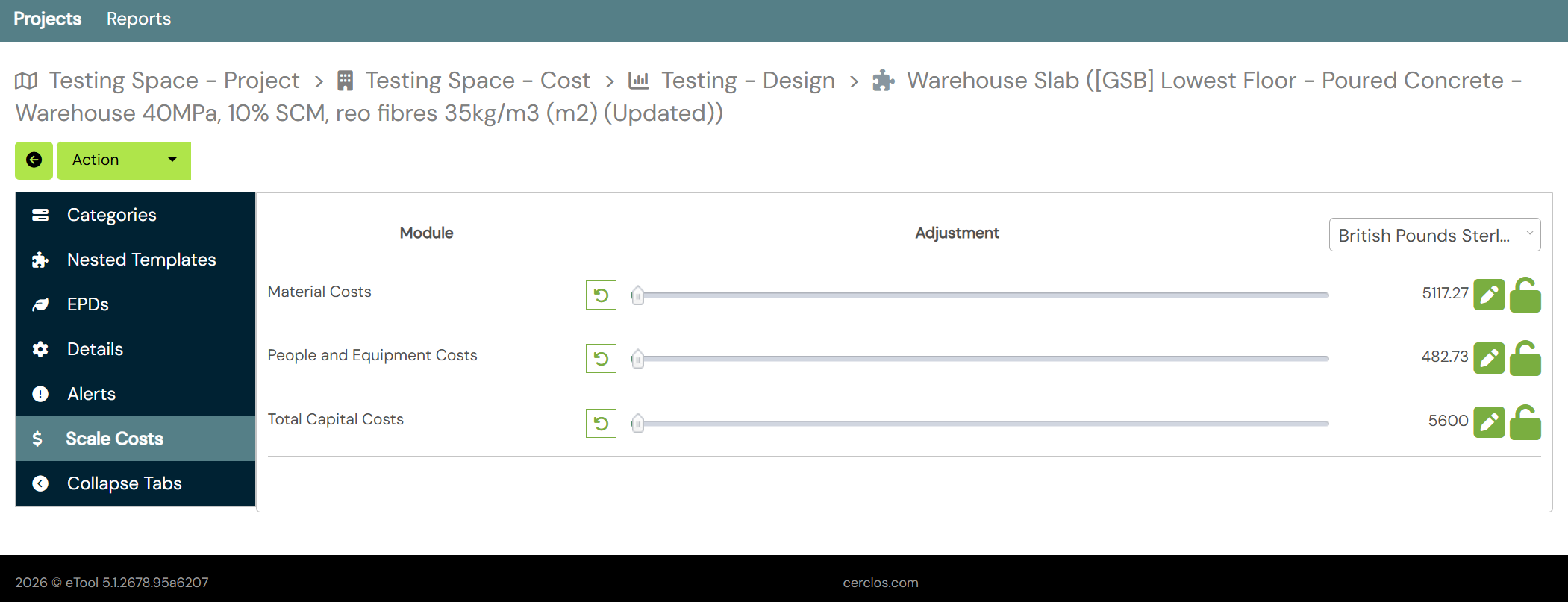
Scale Costs
Importing costs through the template import function assigns the cost of the line item (template) between Material and People and Equipment costs at the default template rate. If you need to adjust this split based on your information you can do this through the Scale Costs tab. This tab exists at the Design level and the Template level. The below link to the knowledge base article explains in detail how to scale costs.
Reporting
LCC reports can now be automatically generated in eTool. There is a Knowledge Base article coming soon breaking down the content of the automated LCC report.

‘Pound Sterling’ indicator is not available in the financial indicator ( only Australian Dollars available). how I can add this financial indicator?
Hi Emad, you can use any financial indicator with this LCC spreadsheet. I will update this support post to clarify this.
can not download the first link.Are these two link same ?
Hi Emad, I just tested it and the link seems to be working fine for me. Can you please try it again?
So the reporting ‘word’ template provides the basis for the component level breakdown at Stage 4, but for the elemental breakdown (Stage 2) you need to combine components back into their elements?
I mean, I get why you wouldn’t do that if you have component level data at Stage 2 but, I’m not sure then what you’d have to do at Stage 4 other than to report changes in the design (alternative components, perhaps?) and if it doesn’t change, you’d effectively be issuing the Stage 2 report with a different cover at Stage 4??
Hi Colin! The word template is the basis for both Stage 2 and Stage 4 LCC reports. The level of detail, elemental or component has to do with the modelling and the options that are appraised. The templates modelling approach in eToolLCD means that you can model in a high level of detail even at Stage 2. What will actually differentiate Stage 2 and Stage 4 reports is the options that were appraised/reported. At Stage 2 you are only required to include the Mat 01 options in the LCC report(if you pursue the LCA/LCC alignment credit). At Stage 4 it’s a requirement to go into more detailed and services related options as per the Man 02 criteria.
The second link downloads the same file as the first link…
Hi Colin, thanks for pointing that out for us. The second link should be fixed now. Let us know if you are still having any trouble.
Does this allow you to target all 3 of the BREEAM Man 02 Life Cycle Costing credits or simply one part of it?
Yes! The reporting is fairly similar for elemental and component level LCC. Elemental level requires only a high-level summary of the LCA results, component level requires a detailed breakdown of each construction componant. Both can be obtained from the results reporting tool. In fact because of the unique way our template system works, you can obtain a detailed breakdown even during early stage 2 analysis (see this post https://support.etool.app/index.php/2019/02/21/early-stage-2-lca-target-setting/)