
With our new “Project Level Reporting” feature, Org Admin users can now generate automated reports across an entire project with multi-structures to gain better understanding of the whole-of-life carbon performance of the project. This unique feature is currently available for Hotseat Orgs only. In this article, we demonstrate how to use the new “Project Level Reporting” feature to create your automated project reports.
Reports
Two reports will be available in the Project level ‘Reports’ tab:
- Project Carbon Performance Report
- Project Custom Report
- Excel Report – Project All Impact Details (GWP)
- All Impact Details (Project Level Indicators)

Note that the ‘Project Carbon Performance Report’ will only generate correctly for residential projects.
When you generate the All Impact Details Report, you’ll download a packaged folder that contains the All Impact Details report for each design being assessed (in the ‘DesignReports’ folder) and a compiled All Impact Details report for all designs. The reports will be generated in Excel format if the design has less than one million rows or CSV format if the design has greater than one million rows.

You can download an example of the reports by clicking on the download links below. Please note that these reports are based on a dummy project therefore the figures & results are not to be used as reference. Please note that while all reports will no longer have watermarks, only certified designs will feature the eTool Certified stamp. Unmarked drafts are preliminary and subject to revision.
Project Carbon Performance Report
Excel Report – Project All Impact Details (GWP)
All Impact Details (Project Level Indicators)
Instructions for Generating the Project Level Reports
Ensure that the following conditions are met.
User requirements:
- The project needs to be assigned to an organisation
- The organisation has a Specialist Hotseat subscription
- The person generating the report needs to have at least ‘Read Only’ access to the Structure, if not more.
Project requirements:
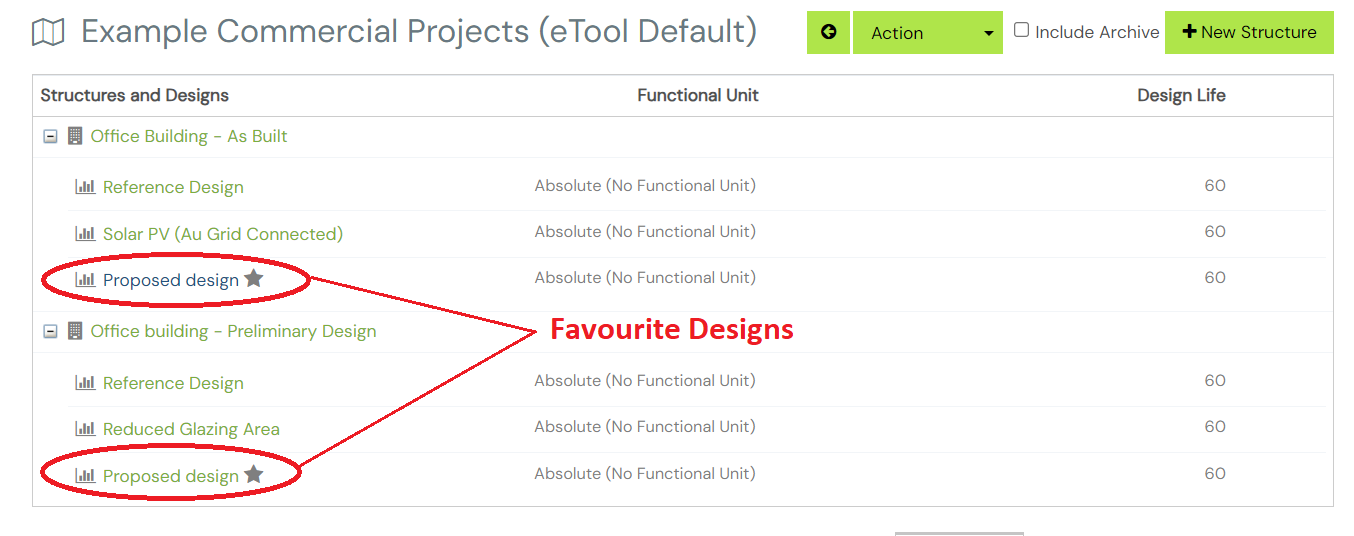
- Cerclos ResultSync – this is a powerful distributed computing network and clustered database that supplements our standard reporting systems. Before you can generate a project report, your designs need to be loaded into ResultSync. eTool selects only ONE design per structure, choosing in the following order of priority – the design that has been favourited, the last certified design or the latest design in each of your eTool structures.
- The selected designs are required to have only ONE ‘Primary’ function. All other functions can only be a ‘Supporting’ function. (not needed for All Impact Details Report)
- The selected designs are required to have a relevant BENCHMARK under “Function” tab at the Design level (e.g. the benchmark of Proposed/Improved/Final/As-Built design is Reference Design or the eTool default Office or Residential benchmarks if applicable). (not needed for All Impact Details Report)
Note that this reporting feature works particularly well with our Project Level Data Import feature as you can specify the parameters of creating the projects that meet the conditions above (i.e. one design per structure, one primary function etc).
Once the above requirements are met, follow the steps below to generate your project-level reports.
Step 1
Select ONE design per structure for reporting by simply marking it as your “favourite” design. You can do this by navigating to the specific design you want to report at the Structure level, then go to the Design level, click on the action button, and select the ‘Favorite’ option. Note that you can skip this step if you wish to let eTool automatically select the design for you.

Step 2
Return to the Project level and navigate to the “ResultSync” tab to load designs.

When all designs are loaded, you will be able to see their status as “Complete”.

You also can exclude any Structure from Reporting. Note that everytime you update the design, you will see the Status as “Modified” in the ResultSync. You may need to retry to load the new version to generate the new report.

Note: The ‘All Impact Details (Project Level Indicators)’ report only needs the first ‘one design per structure’ requirement to gather its results. The report will also display all indicators enabled for the Project (previous version was GWP Total only).
Step 3
Navigate to “Reports” tab. Click “New Report” button and select the report types in the drop down menu for Report Type. You also have the flexibility to customise the report by selecting different report components and attributes. Click “Generate” button to create a Project-level report.


Kindly be aware that the ongoing development of this new feature is still in progress to overcome certain limitations. There may be some discrepancies when generating the project report. If you are facing issues with the project report, please raise a support ticket.
Related articles:
